Overview Page
Search Results Overview
What Happens After You Search
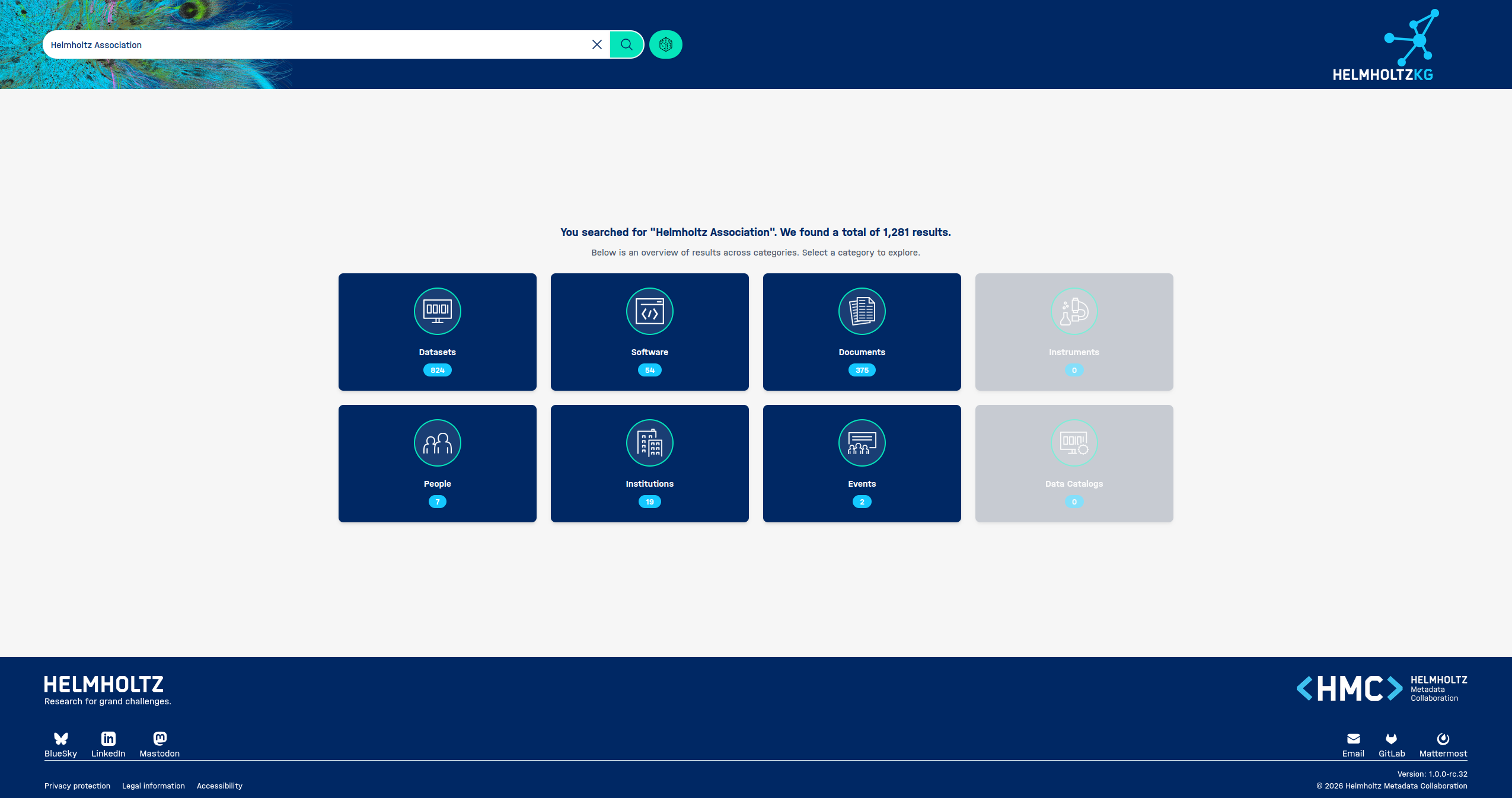
Once you type a search term into the search bar and press the search button, HelmholtzKG navigates you to the Search Results Overview page. This page summarises everything the Knowledge Graph found related to your query, organised by category so you can quickly find what matters most.
Features
🔍 Search Bar (Top Navigation)
Once a search has been performed, the search bar moves to the top of the page, keeping it accessible at all times. From here you can:
- Edit your search term and run a new search without returning to the landing page.
- Clear the current search using the ✕ button to the right of the search field.
- Access language or settings options via the globe icon.
- Click the HelmholtzKG logo in the top-right corner to return to the home page.
📊 Results Summary
Below the search bar, the page displays a plain-language summary of what was found, for example:
You searched for "Helmholtz Association". We found a total of 1,281 results. Below is an overview of results across categories. Select a category to explore.
This tells you at a glance how many items matched your query across all content types.
🗂️ Category Cards
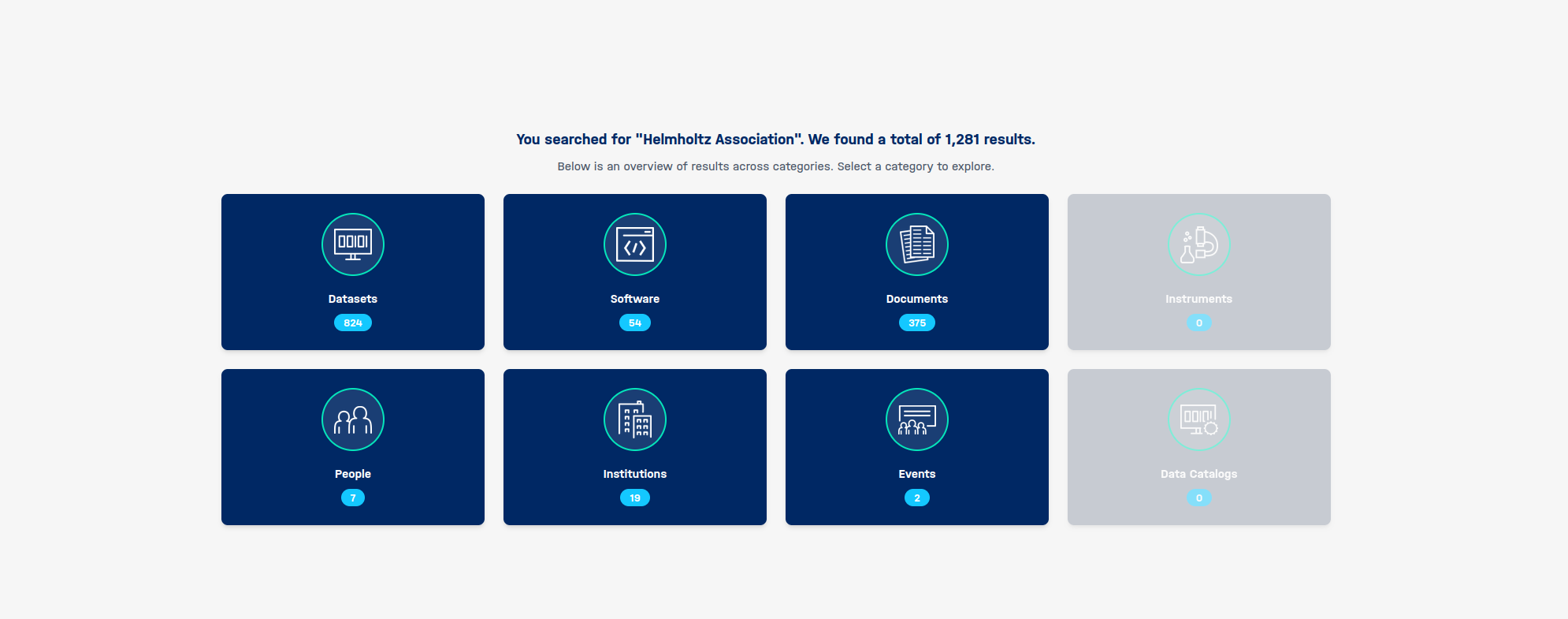
Results are grouped into eight content categories, each shown as a clickable card. Every card displays the category name, an icon, and a count badge showing how many results were found in that category.
| Category | What it contains |
|---|---|
| Datasets | Research data files and collections |
| Software | Tools, code, and software packages |
| Documents | Publications, reports, and written resources |
| Instruments | Scientific instruments and equipment |
| People | Researchers and contributors |
| Institutions | Helmholtz research centres and organisations |
| Events | Conferences, workshops, and activities |
| Data Catalogs | Curated collections of datasets |
Active vs. Greyed-Out Cards
- Dark blue cards — results are available. Click the card to explore them.
- Grey cards — no results were found for that category under your current search. These show a count of 0 and cannot be selected.
💡 Tip: If a category you expect to have results shows 0, try broadening your search term or checking the spelling.
How to Use This Page
- Check the total results count at the top to understand the scope of your search.
- Look at the category cards to see where results are concentrated — the count badge on each card makes this easy to spot.
- Click a category card to explore the results within that category in more detail.
- If your search did not return what you expected, edit the search term in the top bar and search again.
